Copy as cURL
Copy as cURL is an essential Chrome Dev Tools feature that simplifies the process of replicating HTTP requests - so, it's very useful in web scraping. When debugging web scrapers, it's often necessary to re-run specific requests outside the browser, perhaps in a terminal or within a script. This feature allows developers to easily copy the exact HTTP request as a cURL command, which can be executed in any environment that supports cURL.
To use this feature, follow these steps:
- Open Chrome Dev Tools: Press
F12or right-click on the webpage and selectInspect. - Navigate to the Network Tab: This tab logs all network activity for the current page.
- Find the Desired Request: Identify the specific HTTP request you want to replicate.
- Copy as cURL: Right-click on the request and select
Copy>Copy as cURL.
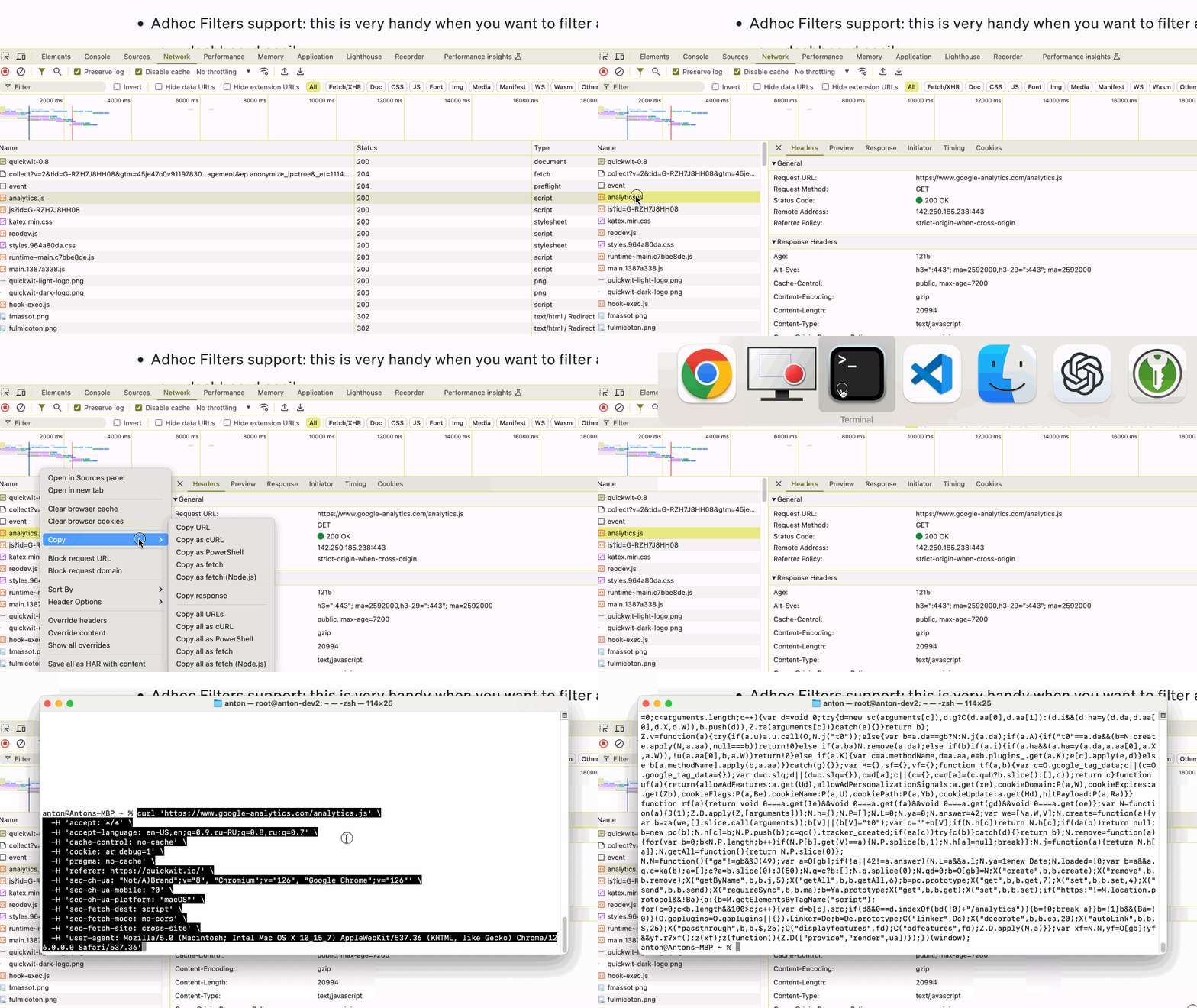
The copied cURL command includes all necessary headers, cookies, and other request details, making it a powerful tool for debugging and automation. For example, you can use this command in a terminal to see the exact response your browser received or integrate it into scripts for automated testing or monitoring.
Convert cURL to web scraper
You can paste the cURL command into cURL to web scraper converter to get a ready ScrapeNinja request which sends the same data.